Your shared moments, easier to find

Review, connect, and exchange eligible photos with friends.

Viola listings coming soon. These links open the store homepages.

  • Analysis on your phone
  • Connect before automatic sharing
  • Encrypt before transfer

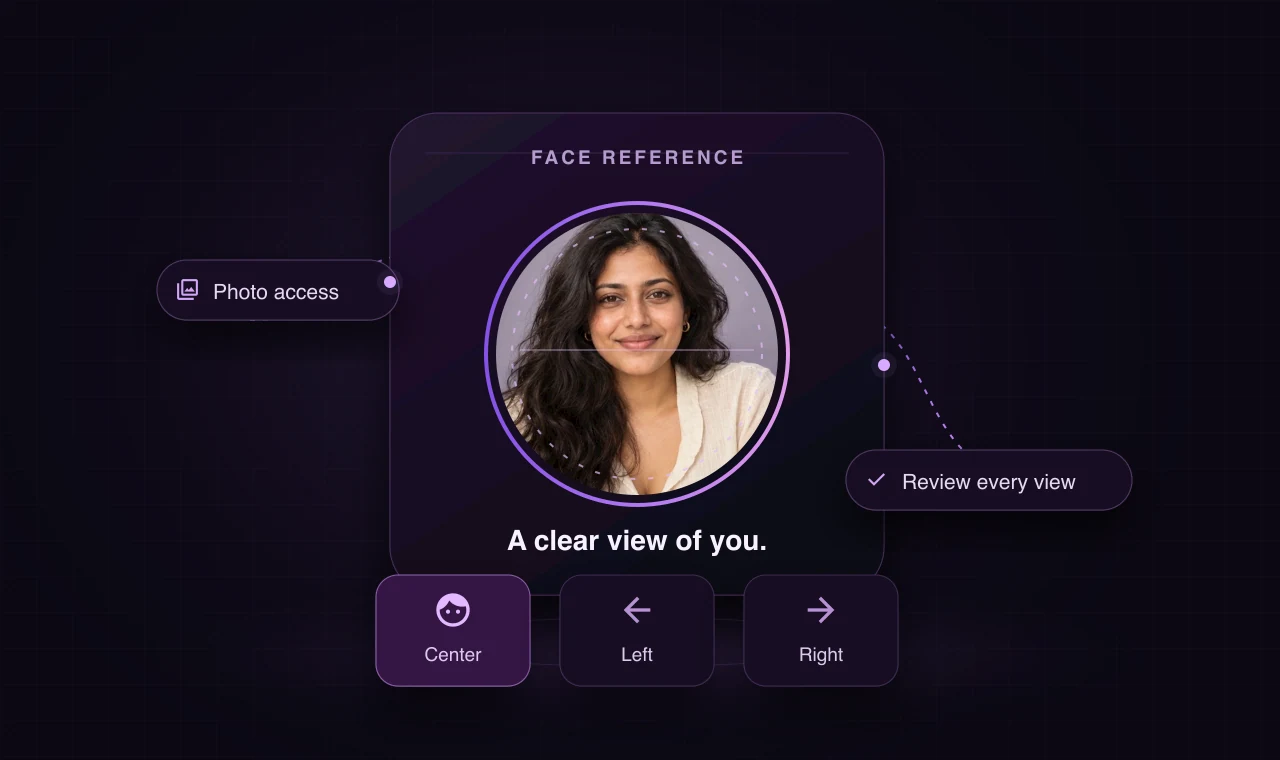
Face setup

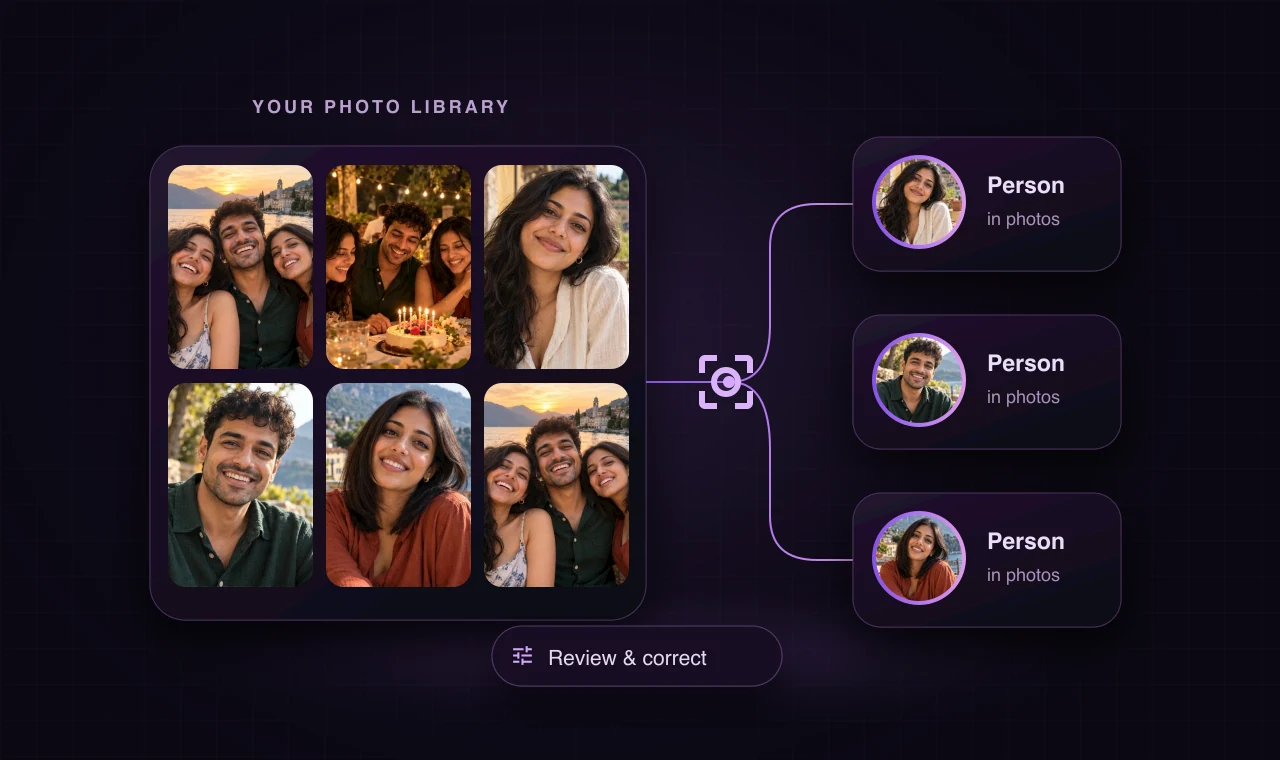
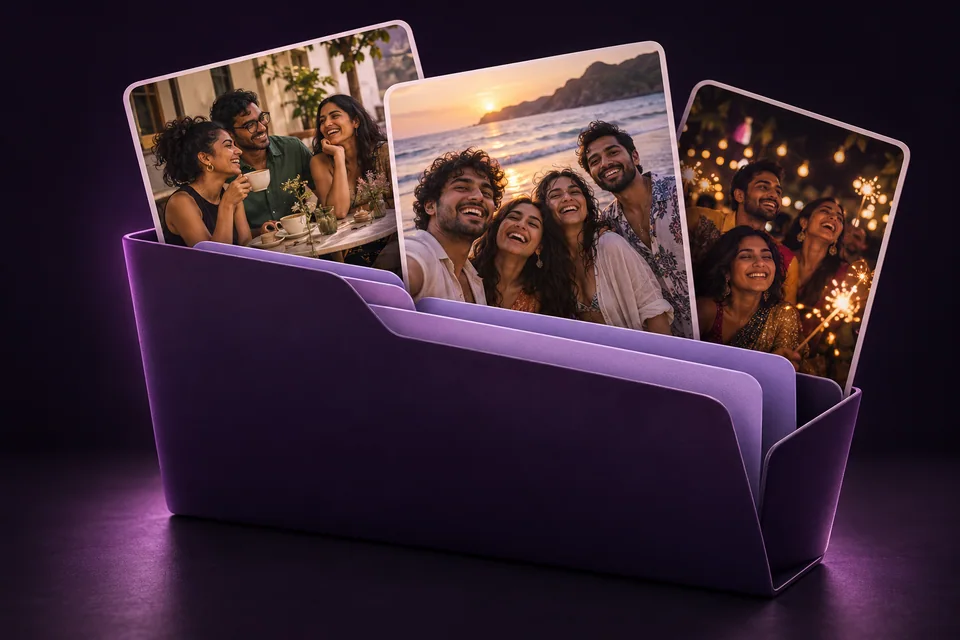
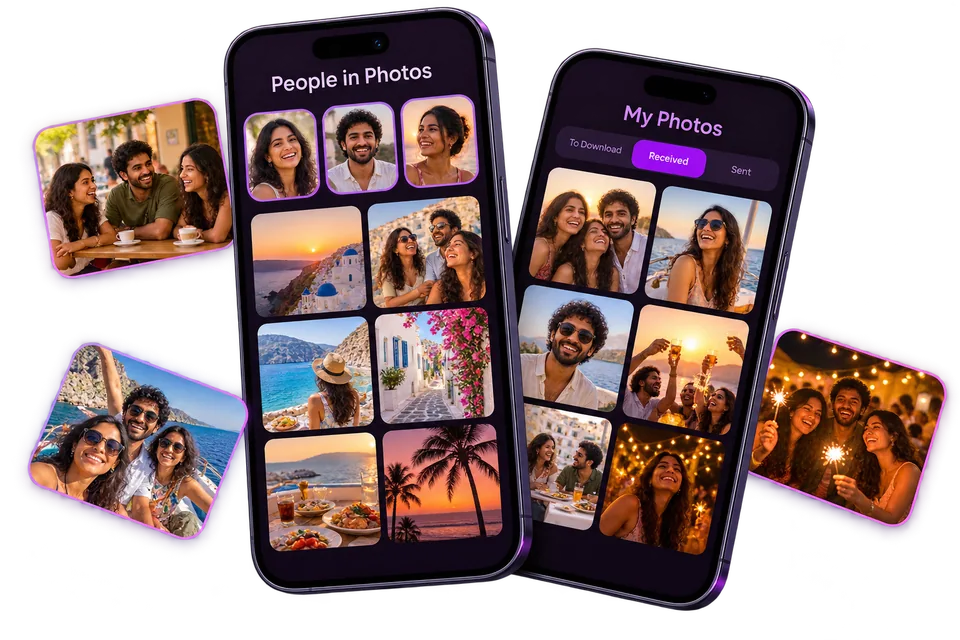
Fictional travel and celebration photos organized into person groups, ready for review.

People, not endless scrolling

Find the people who were there.

Viola scans your library on your phone and groups likely photos by person, with the newest photos first. Open Photos and Together to review a group, and correct a match when something looks wrong.

  • Analysis on your phone
  • Review & correct
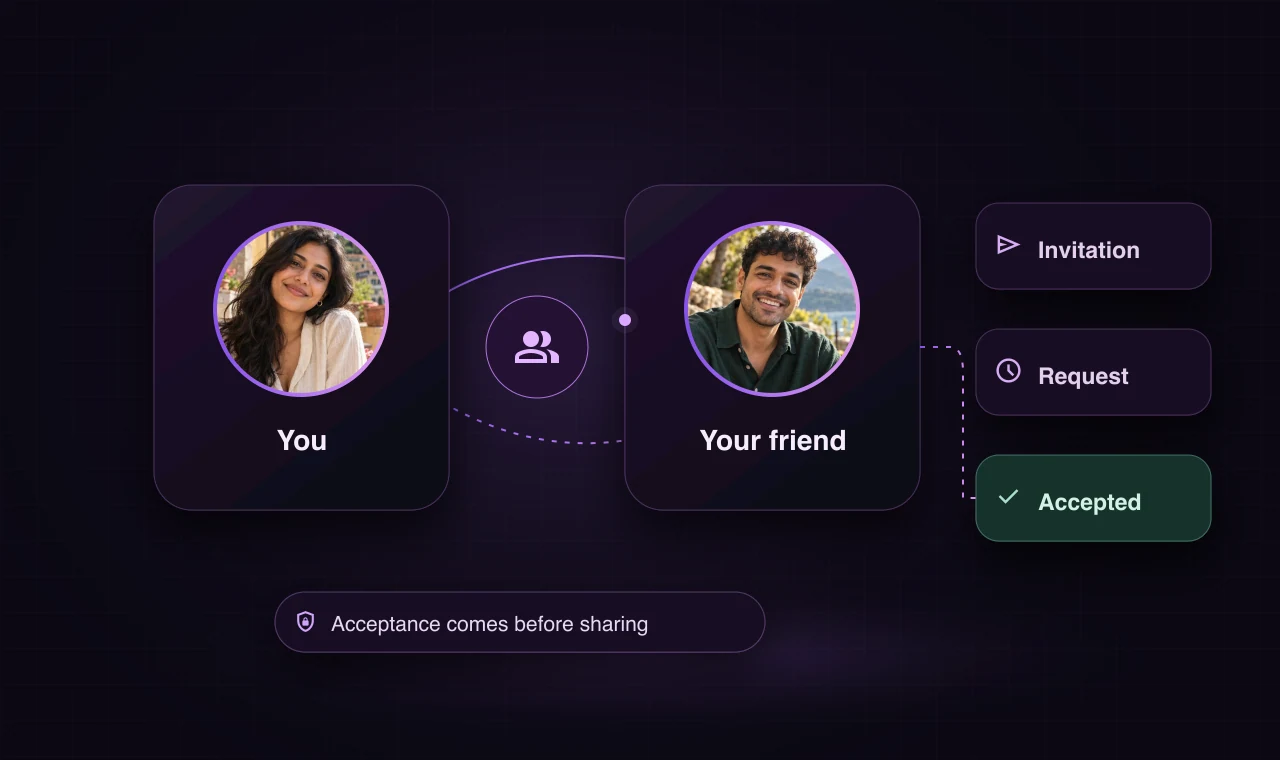
An illustrated invitation moving through request and acceptance between two fictional friends.

A connection comes first

An invitation. A request. Your yes.

Invite the right person from their photo group. They join Viola and send you a connection request. Once you accept, eligible automatic sharing can begin. An invitation alone does not connect you.

  • Invite privately
  • Accept the connection
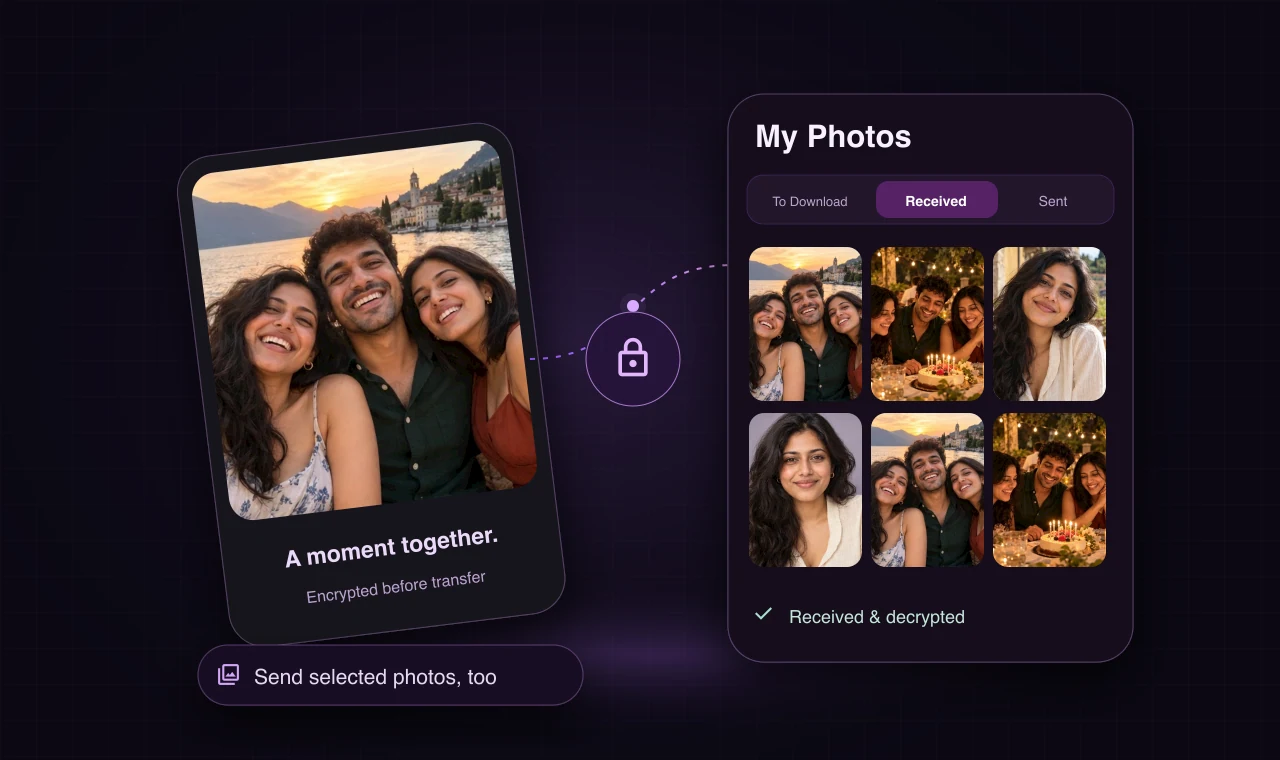
An encrypted photo transfer illustration and My Photos showing To Download, Received, and Sent.

Bring the moments home

Less asking. More photos back.

Eligible matching photos can be shared automatically after connection, or you can choose photos manually. Photos are encrypted before transfer. My Photos shows To Download, Received, and Sent, so you can see what arrived or needs attention.

  • Automatic or manual
  • Encrypted before transfer

The little things that bring photos back

More moments.
Less chasing.

Find your people, keep the final say, and get the right photos back where they belong.

People in Photos

Find faces. Skip the scroll.

Browse people in your photo library, with their newest photos first. Open Photos or Together to find the moments you share.

Concept illustration of fictional friends’ travel and celebration photos grouped around one person.

Review & correct

A match isn’t the final word.

Review suggestions, move a photo, or correct a group. You’re not stuck with a match that looks wrong.

Encrypted transfer

Encrypted before it leaves.

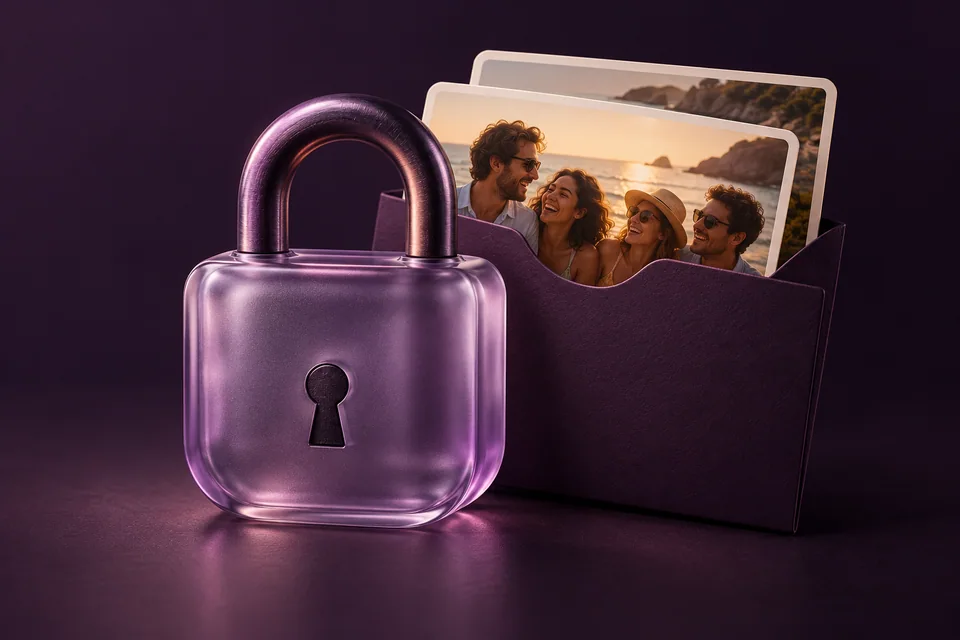
Photos are encrypted on the sender’s phone before transfer and decrypted on the recipient’s phone.

Concept illustration of a lavender glass padlock protecting a sleeve of photo prints.

Connected friends

Your people. Your permission.

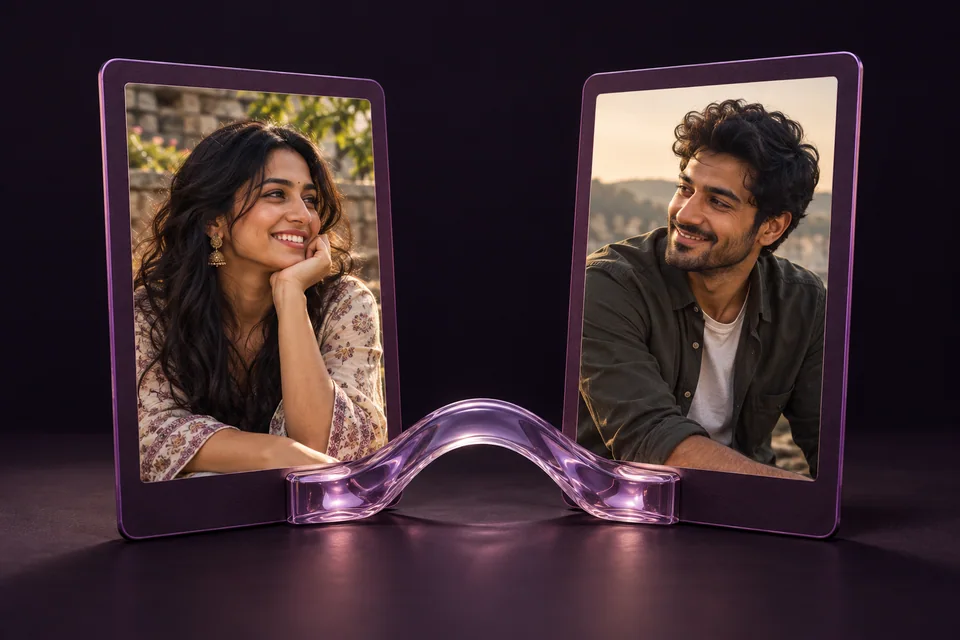
Invite a friend, receive their request, and accept the connection before eligible automatic sharing begins.

Concept illustration of two fictional friends’ portraits joined by a translucent lavender bridge.

Automatic or handpicked

Share on your terms.

Let eligible matching photos send automatically after connection, or handpick photos from Gallery.

AutomaticEligible matches, after connection

or

HandpickedPhotos you choose from Gallery

My Photos

Follow every handoff.

See To Download, Received, and Sent in one place. Save to your phone’s Gallery when enabled and permitted.

Concept illustration of a violet photo archive holding fictional friends’ everyday moments.

Automatic downloads

Let the photos come to you.

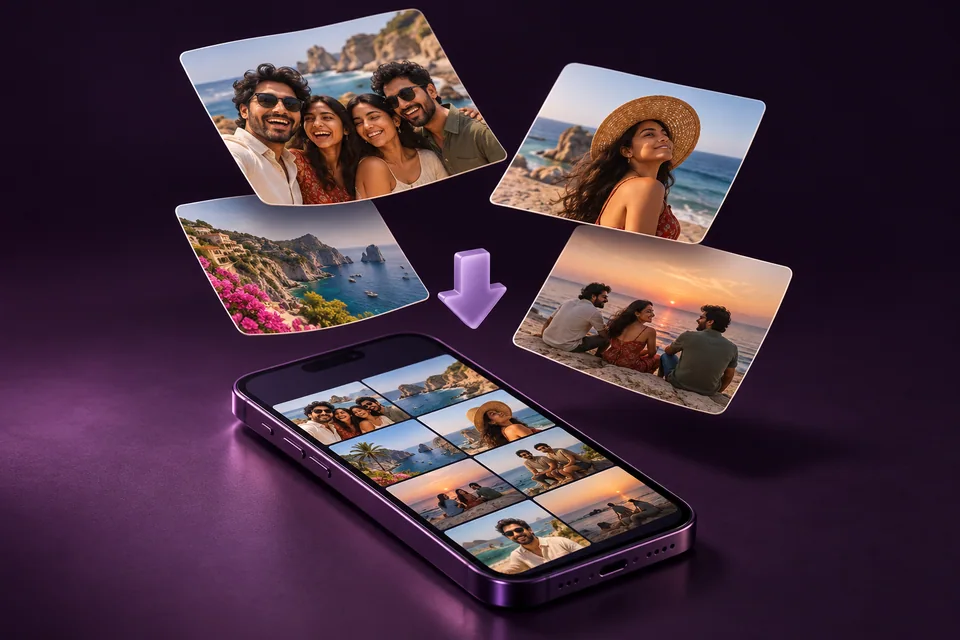
Incoming photos can download and decrypt automatically when your phone can connect. If a transfer waits or fails, check To Download and retry.

Concept illustration of fictional friends’ photo prints arriving in a phone’s photo grid.

Background transfers

Your app doesn’t have to stay on screen.

Viola can send and receive photos without staying open on screen, when iOS or Android allows background work. Timing isn’t guaranteed.

Concept illustration of photos between two resting phones and a clock representing phone-controlled background opportunities.

A familiar face is a better starting point

Less searching.
More photos back.

Viola groups photos by person. Review the matches, connect with your friends, and share the moments you took of one another.

Find by peopleScroll by photo

Privacy & control

Your photos.
Your privacy.

What stays on your phone, what goes online, and the choices you have. Here’s how Viola handles your data.

On your phone

The analysis happens here.

Photo-library scanning and face analysis happen on your device.

Review suggestions and correct mistakes. Ambiguous matches may be withheld; no automated check is perfect.

Online services

Some data goes online.

Your numerical face reference is stored in Firestore so connected friends’ devices can use it for matching.

Account and connection records, transfer metadata, and encrypted photo files also pass through online services.

A face reference is sensitive biometric data. It is a numerical reference, not a face photograph.

Encrypted before transfer

  1. Sender’s phoneEncrypts the photo
  2. Encrypted transferThrough online services
  3. Recipient’s phoneDecrypts the photo

Your choices, in Settings.

Manage your face data, disconnect, or request account deletion. Optional profile fields are shared only when you choose.

Some actions need a connection and may need a retry.

Different plans. The same people.

Big days.
Everyday memories.

A weekend away. A birthday together. The photos are spread across your phones. Viola helps you find and share them with connected friends.

See how Viola works
  • Graduations
  • Weddings
  • Birthdays
  • Weekend trips
  • Celebrations
  • Family days
  • Concert nights
  • Road trips
  • Anniversaries
  • Holidays
  • Reunions
  • Everyday moments

For friends who take photos of one another.

A little clarity

Frequently asked
questions.

From your first scan to a photo that’s still waiting. Here’s what to know.

Still need a hand?[email protected]
Why does Viola ask for photo access?

Viola needs permission to look for faces and organize matching photos in your phone library. Photo scanning and face analysis run on your device. You control the library access granted through your phone settings.

Why is a face reference needed?

The center, left, and right views create a numerical face reference that helps Viola recognize the same person from different angles. The reference is not a face photograph, but it is sensitive biometric data. A numerical enrolled reference is stored online so connected friends’ devices can access it for matching.

What should I do when a person or photo is missing?

Check photo permission, review the selected scan range or albums, and resume any interrupted scan. Some faces may not be usable because of angle, size, blur, or other quality limits. A later scan can discover more photos.

What if a match is incorrect?

Open the person group and use the review and correction tools. You can confirm suggestions, move or regroup mistakes, hide a group, and correct who appears in a photo. Matching is probabilistic, so review matters.

Why does a photo say waiting or To Download?

A transfer may be waiting for a connection, network access, the other phone, or an operating-system opportunity to continue. To Download means an encrypted photo is available but has not yet been saved on this phone. Viola provides retry and attention states when work cannot finish.

How does a friend’s invitation become a connection?

An invitation brings the person into Viola; it does not create a connection by itself. Open the invitation, join or sign in, grant photo access, and complete face setup. Send a connection request to the friend who invited you. They accept before connection-controlled sharing begins. If you install the app first, you may need to return to the original invitation.

What is the difference between automatic and manual sharing?

After a friend is connected and linked to the correct person group, Viola can automatically send eligible confident matches. You can also select and send photos manually from Gallery. Safety checks, permissions, connection state, and photo availability can affect both paths.

How does background work behave on iPhone?

iOS decides when background work can run, so timing is not guaranteed. Viola can check, resume, or retry when iOS allows it. Optional Camera-close Shortcuts automation and optional significant-location-change checks create extra opportunities only after you configure and permit them. Force-quitting can prevent normal background opportunities.

How does background work behave on Android?

Android can continue or schedule some work when the operating system permits it. Battery optimization, vendor power controls, connectivity, and force-stopping the app can delay or stop work. Reopen Viola, check any shown error, and use Resume or Retry when needed.

What can recall do?

For a recent send, recall can stop later downloads and ask Viola to remove its received copy when the recipient reconnects. Recall is available for up to 24 hours after sending. It cannot erase screenshots, Gallery copies, or files saved elsewhere.

What happens after reinstalling the app?

Local scan results, device-held keys, downloaded files, and settings may not all survive reinstalling. You may need to sign in, restore permissions, enroll again, and rescan. Some transfers encrypted for an earlier device identity may need to be resent.

How do I disconnect or delete my account?

Open a connected friend’s profile to disconnect; this stops future automatic sharing but does not remove copies already saved on either phone. Account and face-data controls are available in Settings. If an action fails, retry while online or contact support.